
How To Get More Space for Games on Laptop: Easy Tips
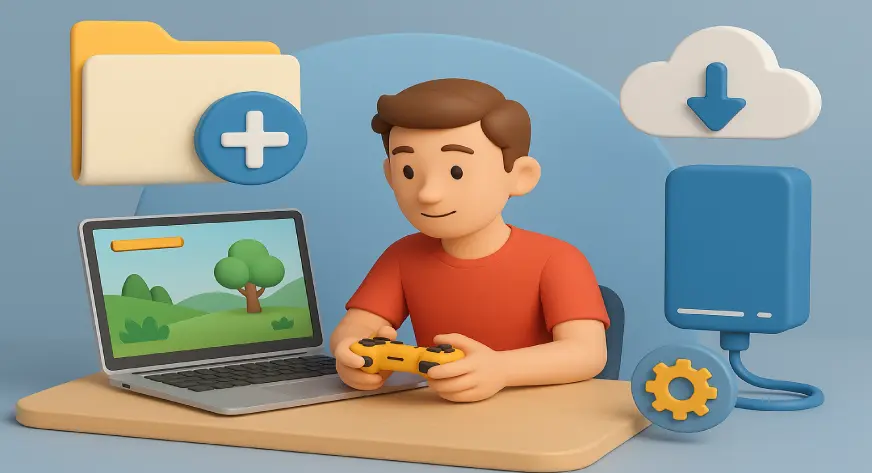
To get more space for games on a laptop, delete unused apps, remove old game files, clear temporary files, move games to an external SSD, upgrade to a larger internal SSD/HDD, use cloud storage for non-game files, and uninstall duplicate or heavy software.
If you’re wondering how to get more space for games on a laptop, the short answer is: delete unused files, manage your game library smartly, and add extra storage through SSDs or external drives. But that’s just the start there are many simple ways to clear space without slowing down your laptop or deleting your favourite games.
Modern titles are getting heavier, updates keep growing, and even indie games now take more space than expected. So let’s walk through the easiest and most reliable ways to free up storage and make room for the games you really want to play.
Why Laptop Storage Fills Up So Fast?
Before we fix the problem, it helps to understand why gaming laptops run out of space quickly. Some common reasons include:
1. Large game installation files
AAA games often go above 80–120GB, and many install extra high-resolution texture packs by default.
2. Frequent game updates
Live-service games like Fortnite, Warzone, Apex Legends, and Valorant push huge patches that keep adding up.
3. Duplicate files and leftover data
Old save files, logs, patch backups, and cache folders take hidden space.
4. Other apps competing for storage
Video editors, music libraries, downloads, and photos slowly eat up your available space without you noticing. Now that we know what causes the clutter, let’s move to the part you actually need, practical ways to free up more space for games on the laptop.
Remove Games You’re Not Playing Right Now
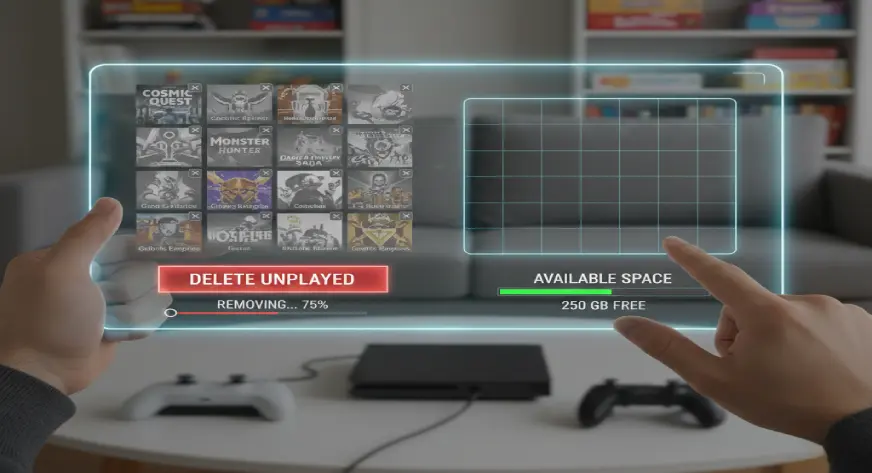
This is the quickest and easiest fix. If you have 8–10 big games installed, chances are you only play 2–3 regularly. The rest simply take up valuable storage.
How to do it smartly:
- Keep only the games you actively play.
- Uninstall games with short campaigns after finishing them.
- Reinstall later whenever you want, platforms like Steam, Epic, and Xbox Store remember all your progress.
Why it helps:
Some single-player titles take over 100GB. Removing two such games gives you enough space for multiple new ones.
Move Games to an External Drive
If deleting games feels tough, this is the next best option. An external SSD works like a portable game library, plug it in and launch your games without using the laptop’s internal storage.
Why an SSD is better than HDD for gaming
- Faster loading times
- Reduced stutter
- Better texture rendering
- Smoother open-world gameplay
A 1TB external SSD gives you plenty of space for heavy games like Red Dead Redemption 2, Cyberpunk 2077, or Assassin’s Creed titles.
Also Read, Why Is Cloud Storage Essential for Remote Teams?
Upgrade Your Laptop’s Internal SSD
If your laptop supports it, upgrading the SSD is the most powerful solution to get long-term space.
What you can upgrade to:
- NVMe SSDs – fastest and best for gaming
- SATA SSDs – still much faster than HDDs, and cheaper
Benefits:
- Faster game loading
- Quicker boot time
- More room for large games
- Better overall performance
If you play many modern games, moving from a 256GB/512GB SSD to 1TB or 2TB makes a huge difference.
Also Read,
Use Cloud Storage for Non-Gaming Files
Your laptop storage should focus on gaming. Everything else documents, photos, videos, backups can easily move to the cloud.
Using cloud storage helps keep space free for what matters: your games.
What to store in cloud storage:
- Old screenshots
- Video clips
- Project files
- Documents
- Media folders
- Old screenshots
Free cloud tools like Athena Cloud storage, Google Drive, OneDrive, and Dropbox help remove a lot of non-essential files from your device.
This way, you make more space for games on laptop without deleting anything important.
Clear Temporary Files and Hidden Junk
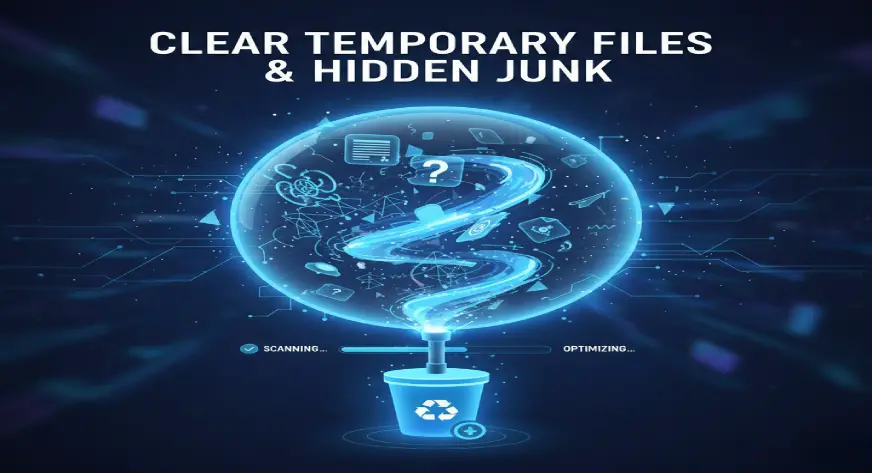
Temporary system files silently eat up space. Clearing them can instantly free anywhere from 5GB to 20GB.
Where to clean:
- Windows temporary files
- Browser cache
- Game launchers’ cache (Steam, Epic, etc.)
- Old update backups
- Recycle bin
Windows has a built-in Disk Cleanup tool and Storage Sense that automate this process.
Compress Large Files You Don’t Use Often
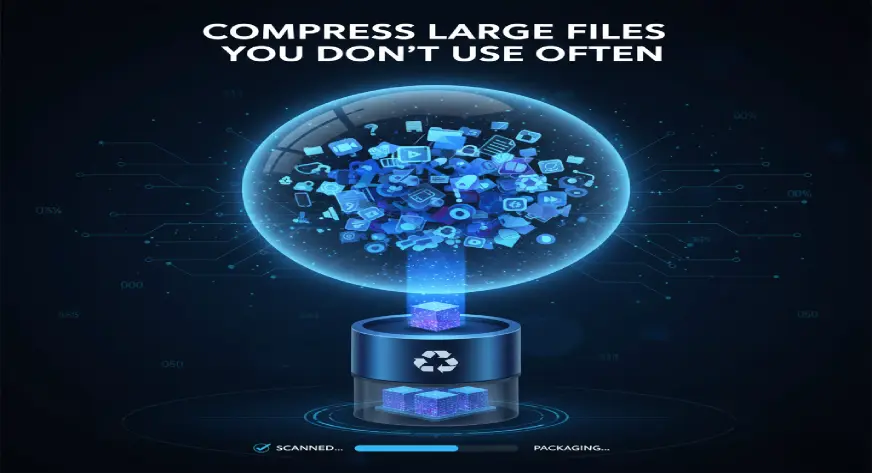
If you have big video files, archived game mods, raw recordings, or installation packages, compressing them saves a surprising amount of space.
You can use:
- WinRAR
- 7-Zip
- Windows built-in compression
You won’t need these files daily, so compressing them helps free up storage without deleting anything permanently.
Store Game Clips and Screenshots Externally
Gaming videos are the biggest hidden storage hogs. Even a few clips recorded in 1080p or 4K can take dozens of gigabytes.
Solutions:
- Move old clips to cloud storage
- Copy them to an external HDD/SSD
- Delete clips you no longer need
- Reduce recording quality if you don’t need high resolution
This alone can free up 50–100GB easily.
Disable Automatic Downloads for Games
Platforms like Steam, Battle.net, and Epic automatically download updates.
If you have several games installed, this adds up fast.
What to do:
- Turn off auto-updates for games you rarely play
- Limit background downloads
- Disable preload for games you haven’t planned to play
This prevents your storage from filling up without your knowledge.
Delete Unnecessary Apps and Tools
Many laptops come with pre-installed apps you never use. Over time, you may also have downloaded tools you no longer need.
Examples include:
- Old editing apps
- Unused browsers
- Duplicate utilities
- Demo software
- Trial versions
Cleaning them up gives you space while improving performance.
Move Save Files and Mods to Another Drive
Some games store massive save files especially open-world RPGs. Similarly, mod folders for games like GTA V, Skyrim, and Minecraft can grow huge.
What you can do:
- Move mod folders to another drive
- Archive older saves
- Keep only the latest save files
- Offload outdated mod packs
This helps keep your internal SSD free for more games.
Use a Second Internal Drive (If Your Laptop Has a Spare Slot)
Many mid-range and high-end laptops come with:
- a spare NVMe slot OR
- a 2.5-inch SATA bay
Adding a second drive means you don’t replace anything, you simply add more space.
Imagine having:
- a 512GB SSD for Windows
- a separate 1TB SSD just for games
It makes storage easier and your laptop runs smoother.
Stream Games Instead of Installing Them
If your internet is strong, you can stream games instead of installing them.
Using services like:
- Xbox Cloud Gaming
- NVIDIA GeForce NOW
- Boosteroid
You can play many titles without using any storage at all. This is useful for testing games before you decide to download them fully.
Final Thoughts
Making more space for games on a laptop doesn’t require complex steps. Start with simple things like uninstalling unused games, cleaning temporary files, moving media to cloud storage, and using an external SSD. If you want long-term gaming comfort, upgrading your internal SSD is a great investment.
With the right combination of these steps, you can make room for your favourite games without slowing down your system or sacrificing performance.
If you’re looking for a dependable cloud storage option to move your non-gaming files and free up space for your games, Athena by WebWorks Co. offers a simple, secure place to store your data. It helps you offload large media files, project folders, and backups so your laptop’s internal SSD can stay focused on what you enjoy most gaming. No pressure, just a convenient option when you need it.
